MSTechpages
  • Home
  • Knowledge Base
  • Reviews
  • Articles
  • About
Windows 10

Show Windows Side by Side; Stacked; Cascade

Jan 9, 2018·Dustin
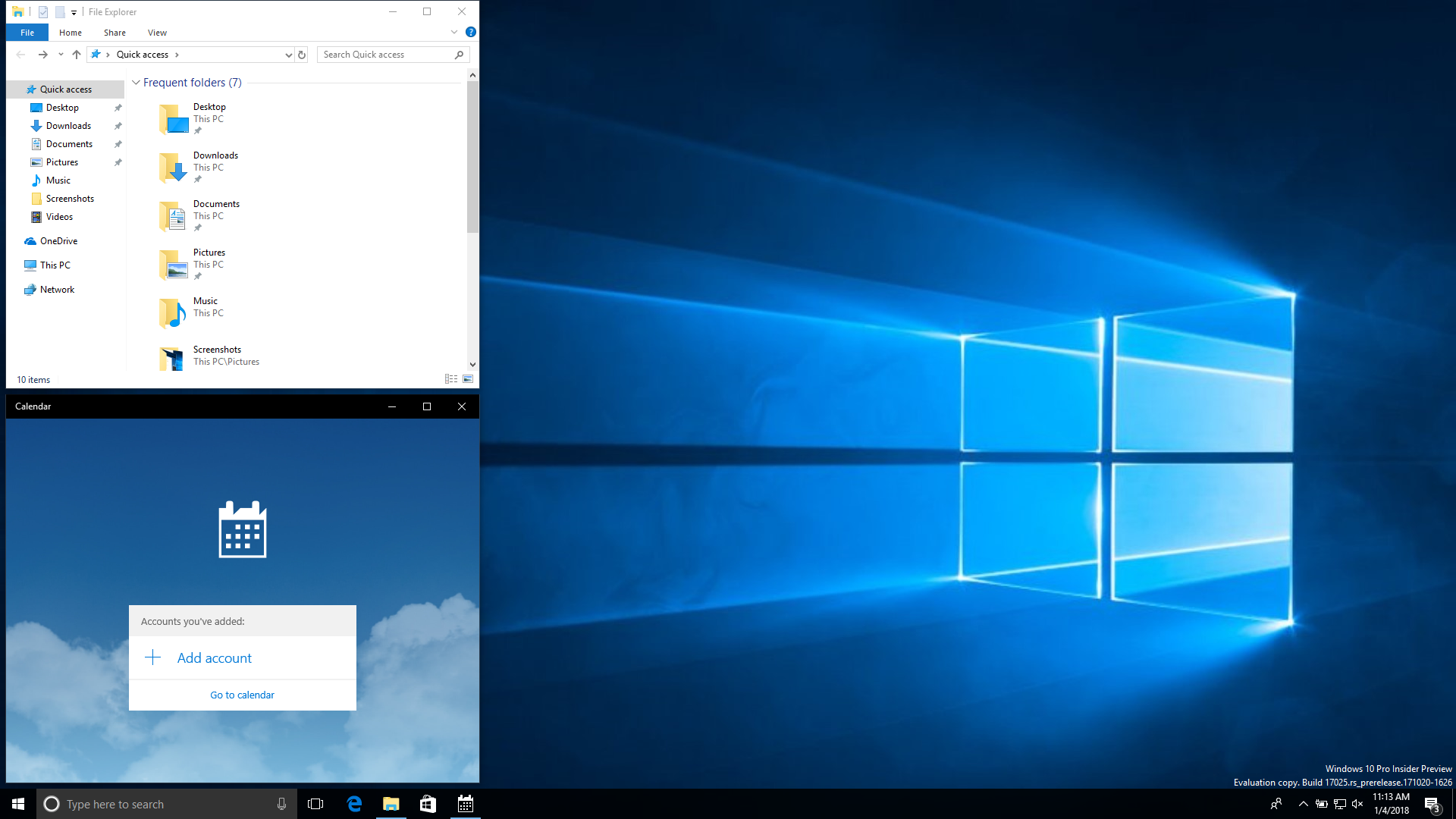
Windows 10 desktop showing File Explorer Quick access and a Calendar popup with Add account and Go to calendar options

Estimated Reading Time: 1 min

Manipulating windows within Windows 10 is pretty simple. If you have multiple windows open and you want to make things easier to read, or to stack them to make them easier to find, you can have Windows do the work for you. Here are 3 different configurations that you can do to make manipulating windows easier:


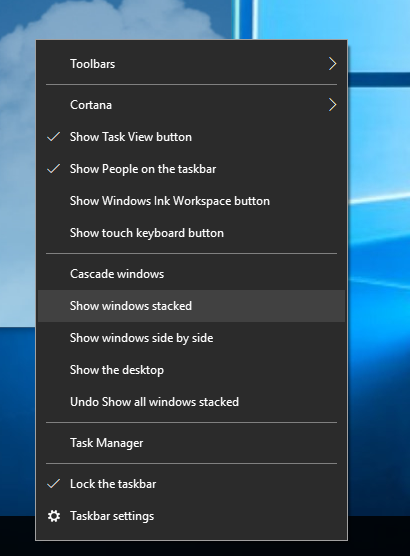
Stacked Windows

1. Have at least 2 windows open. Right click the task bar and select Show windows stacked.


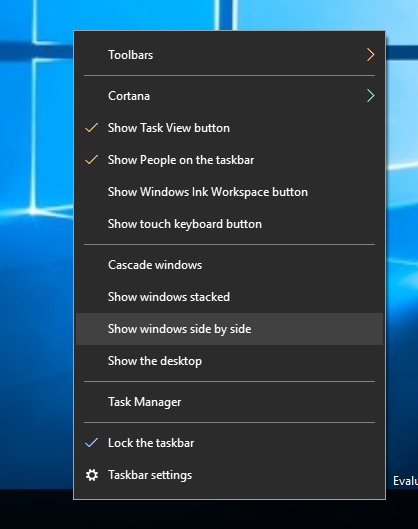
Side by Side Windows

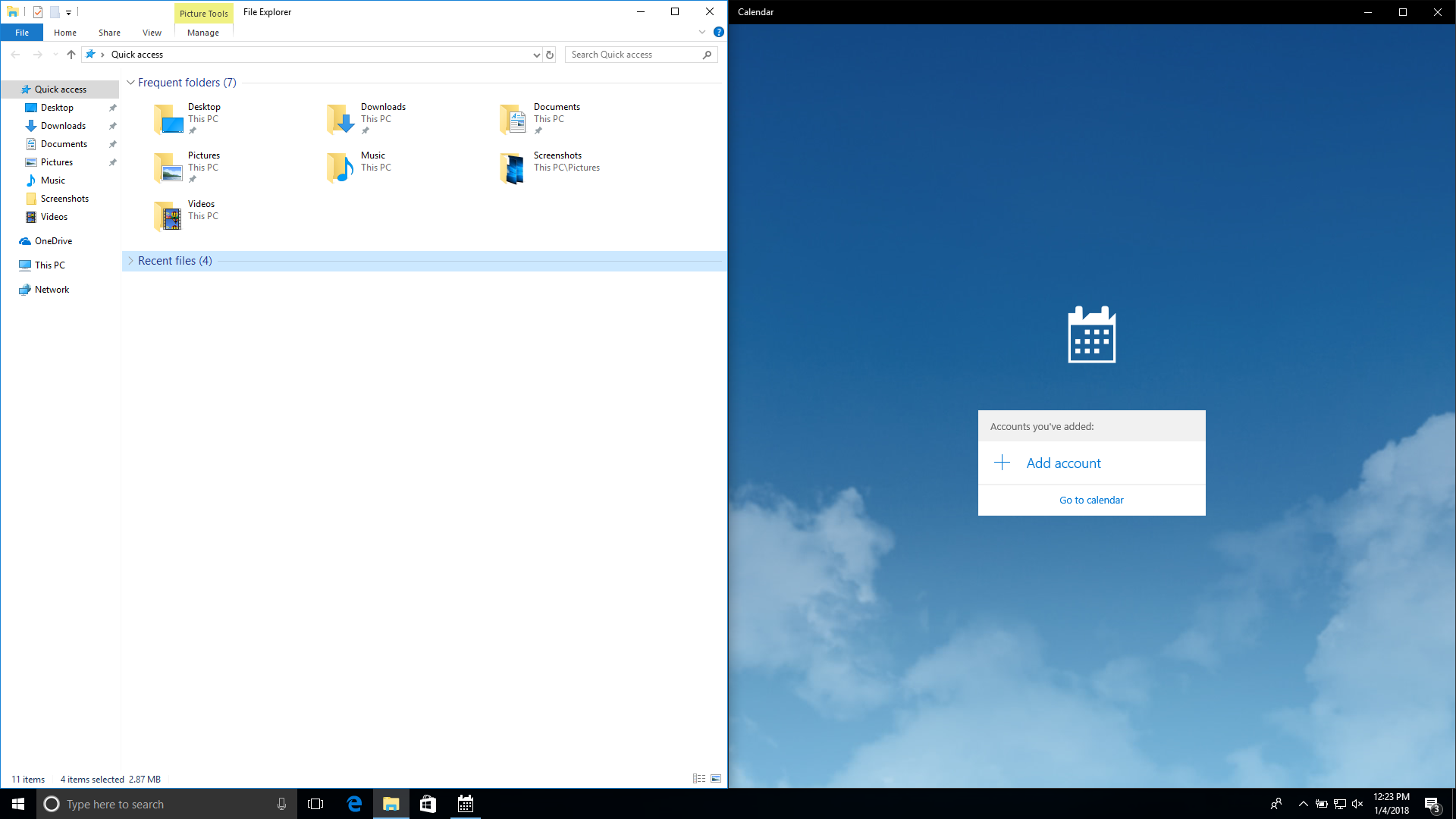
1. Have at least 2 windows open. Right click the task bar and select Show windows side by side.


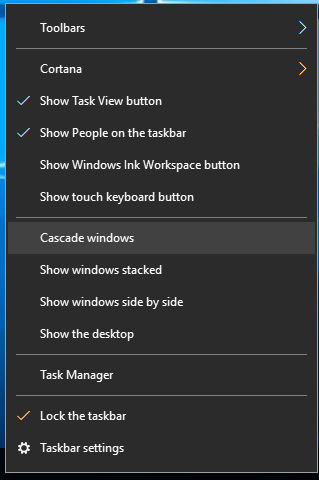
Cascading Windows

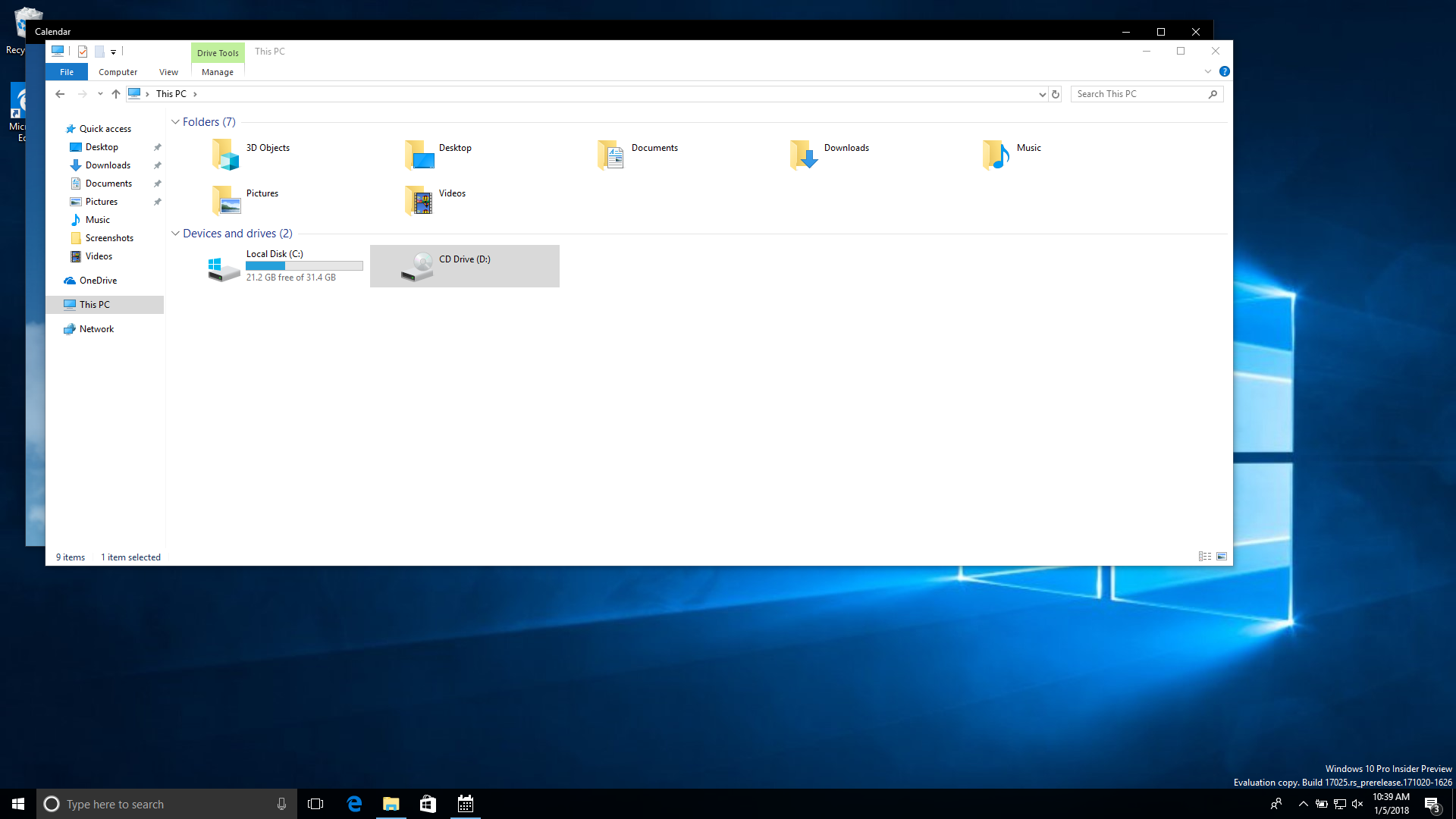
1. Have at least 2 windows open. Right click the task bar and select Cascade windows.


Related Products on Amazon
Windows 10 Pro LicenseShop on Amazon
USB Boot DriveShop on Amazon
DDR4 RAMShop on Amazon
SATA SSDShop on Amazon

MSTechPages is a participant in the Amazon Services LLC Associates Program, an affiliate advertising program designed to provide a means for sites to earn advertising fees by advertising and linking to Amazon.com. As an Amazon Associate, we earn from qualifying purchases at no extra cost to you.
Written by
Dustin · Founder and Head Editor, News Poster
Sr. Cybersecurity Engineer - Microsoft MVP Windows Experience (2014-2015)

Dustin is the founder and head editor of MSTechpages. He started the site to help other users of Windows. He has been very active with helping others throughout the years, from USENET to Microsoft Answers to the latest Microsoft Communities as well as other internet forums such as Reddit. He is a Sr. System Administrator, holds several industry certifications and degrees.

View all 1499 articles by Dustin →

Related Articles

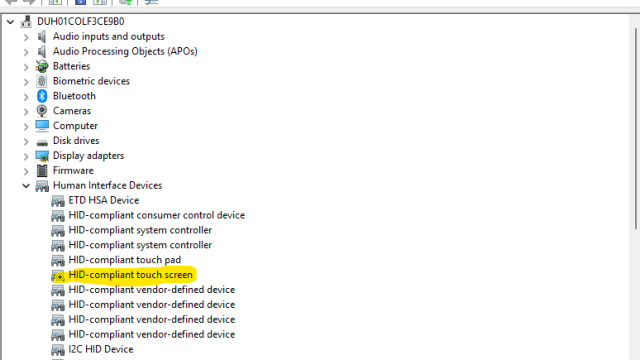
Device Manager showing the highlighted HID-compliant touch screen under Human Interface Devices Windows 10

Disable Touch Screen in Windows

Jun 24, 2026 · Dustin
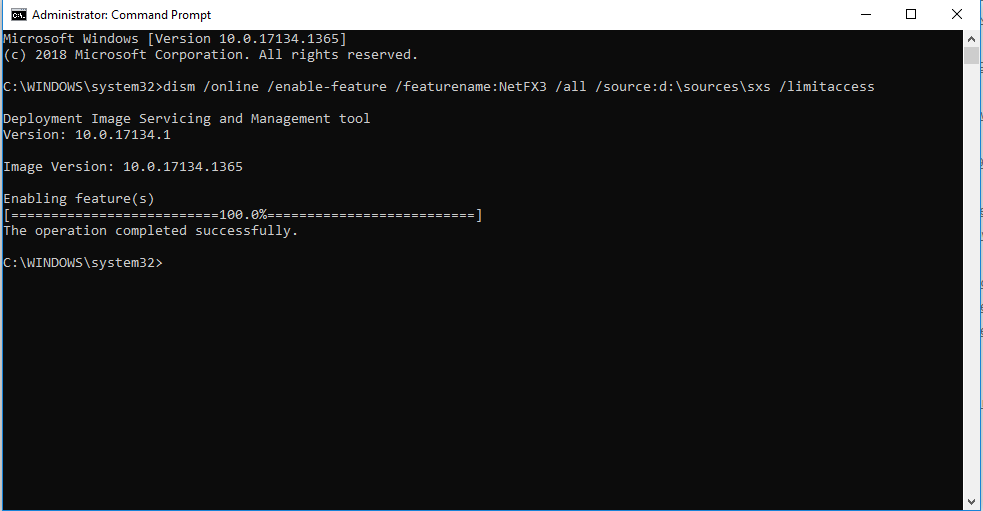
Windows Command Prompt shows DISM successfully enabling the .NET Framework 3.5 feature Windows 10

Offline install of .Net Framework 3.5 using DISM

Apr 1, 2020 · Dustin
Windows Start menu open with an alphabetical app list, pinned tiles, and taskbar icons Windows 10

Disable Autohide Scrollbars

Jul 8, 2019 · Dustin

Windows Insider Builds

Beta
26220.9587
Beta (26H1)
28020.3142
Experimental
26340.9596
Experimental (26H1)
28120.3151
Experimental (Future)
29680.1000
Recent Knowledge Base Articles
  • Disable Touch Screen in Windows
  • Add “End Task” To Right Click Application on Taskbar
  • Offline install of .Net Framework 3.5 using DISM
  • Disable Autohide Scrollbars
  • Install Active Directory RSAT in Windows 10 1809 or later
  • Disable File Grouping in File Explorer
  • Forget Wireless Networks
  • Show Hidden Files & Folders
  • Enable Night Light Mode
  • How to Fix a Network Printer Showing Offline
MSTechpages

Covering Microsoft since the dial-up days, using Windows since 2.0.

Windows

  • Windows 11
  • Windows Insider
  • Canary Channel
  • Cumulative Updates

Resources

  • Knowledge Base
  • Articles
  • Reviews

Company

  • About
  • Contact
  • Privacy Policy
  • Advertise

© 2026 MSTechpages. All rights reserved.

Privacy