Skip to content

MSTechpages

home
  • Home
  • Reviews
  • Articles
  • Knowledge Base
    • Windows 11
    • Windows 10
    • Windows 8
    • Windows 7
    • Windows Vista
    • Windows XP
    • XBox
    • Office Suite
  • Contact
  • About
When autocomplete results are available use up and down arrows to review and enter to go to the desired page. Touch device users, explore by touch or with swipe gestures.
  • Facebook
  • BlueSky
  • YouTube
When autocomplete results are available use up and down arrows to review and enter to go to the desired page. Touch device users, explore by touch or with swipe gestures.
  • Home
  • Reviews
  • Articles
  • Knowledge Base
    • Windows 11
    • Windows 10
    • Windows 8
    • Windows 7
    • Windows Vista
    • Windows XP
    • XBox
    • Office Suite
  • Contact
  • About
  • Facebook
  • BlueSky
  • YouTube

Windows 11

  • Tips and Tricks
    • Add “End Task” To Right Click Application on Taskbar
View Categories
  • Home
  • Knowledge Base
  • Windows 11
  • Tips and Tricks
  • Add “End Task” To Right Click Application on Taskbar

Add “End Task” To Right Click Application on Taskbar

< 1 min read

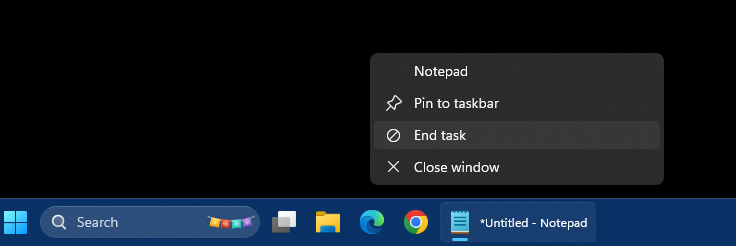
For many, using Task Manager to end a task can be a common task. With Windows 11, you can save some time and make things a little easier by adding an “End Task” option to right clicking the application on the taskbar.


  1. First, you need to go into Start, then Settings. From there, select Advanced.


2. Next, under Task Bar, click the “End Task” to turn it on.


Now, when you right click on a running application on the task bar, you will see the “End Task” option that works the same was as doing it from Task Manager. This should save you some time and clicks when needing to close an application.

Updated on February 11, 2026

What are your Feelings

  • Happy
  • Normal
  • Sad

Share This Article :

  • Facebook
  • X
  • LinkedIn
  • Pinterest
Add “End Task” To Right Click Application on TaskbarAdd “End Task” To Right Click Application on Taskbar
© 2026 MSTechpages Powered by WordPress Theme by Design Lab