

10 Years Of Windows Insider Program

Posted on

Today marks the 10 year anniversary of the Windows Insider Program from Microsoft. As someone that’s been there since day 1, it’s been a wild ride. Sometimes, it really feels like it was just yesterday when it released.

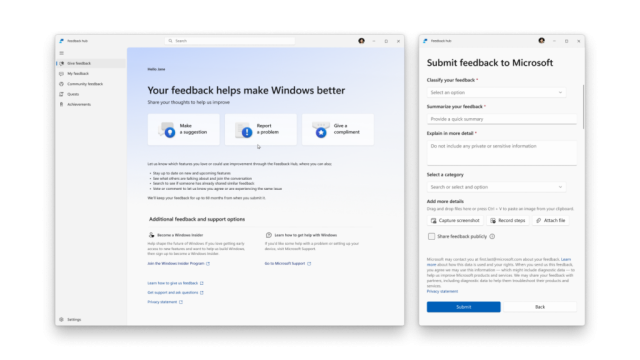
You can still join the program and sign up for whatever channel you’d like to participate in, depending on how you want things to work (latest and greatest but maybe not fully functional or more stable and a little closer to the final release). As always, be sure to submit your feedback. They really do read it!

Thank you to the Windows Insider team at Microsoft for a great 10 years, and here’s to another great 10 years! Cheers!

Microsoft Certification Pricing Updates

Posted on

Microsoft will be adjusting their pricing on their certification exams. For those in the US, the Fundamentals will be $99 and the Advanced Role Based will be $165. They are crediting the recent market conditions as the reasoning for the pricing change. You can check the post for more information and what the pricing may be in your region.

Remember, if the price is going up where you are at, you can schedule an exam before October 31st at the lower price if needed and reschedule it to a later date to keep that price available. This is a good way to save money if you’re planning on taking an exam soon but not before the end of October.

If you’re planning to take a Microsoft Certification exam, you can register for and take the exam at the current price until October 31, 2024. If you register to take the exam on or after November 1, 2024, you’ll pay the updated price. Remember, in many countries and regions, the retail price is not changing and might even be decreasing. For more information on how to register and pay for your exam, go to the Microsoft Certification exam policies and FAQs.

New PowerToys Feature – Workspaces

Posted on

Microsoft released a new update for their PowerToys feature called Workspaces, available here. This allows you to select a group of applications on your desktop, including multiple monitors, and be able to restore them at the push of a button. For both maximized and minimized application and the application location on screen. The only caveat is that if the application is running as Administrator, it will not recall the position on screen.

The description from Microsoft:

PowerToys Workspaces is a desktop manager utility for launching a set of applications to custom positions and configurations with one-click, getting you into your ideal desktop state for any project or activity faster. You can capture your desktop state as a new workspace using the editor, add arguments to apps to configure their state on launch, and pin the workspace as a desktop shortcut for quick-launching. Launching the workspace will launch all apps to their assigned positions.

There are some third party addons that can do similar things but having an official Microsoft version as part of their PowerToys suite can be easier for a corporate IT department to approve as well as a little smaller footprint.

Reimagining the Microsoft Certification exam UI experience

Posted on

Microsoft has redesigned their certification exam UI, bring a more modern and helpful look to the exam interface. A lot of these were often talked about suggestions and all of them are very welcomed to help out in the exam room. From a nice dark mode to your exam progress indicator, it’s there to help make you know what’s going on in the exam and help you manage your time and reduce that exam stress.

Highlights of the new and improved UI include:

  • The ability to turn the exam clock on and off.

  • An expandable exam menu toolbar on the side of the screen, providing more space for the question and minimizing scrolling.

  • A new flyout tools menu, including:

    • Exam Question Details, providing a quick count of items answered, unanswered, marked for review, and marked for comment.
    • Exam Progress, offering a visual indicator of how much of the exam you’ve completed and how much remains.
  • A design that minimizes vertical and horizontal scrolling.

  • A more logical placement of the Review later and Leave feedback boxes.

  • A subway map that shows where you are in the exam.

  • An exam progress bar with each question so you know exactly how many sections and questions remain.

  • An improved review screen, with a filtered view that displays questions that are answered, unanswered, marked for review, or marked for comment. Review mode includes labels throughout, reminding you which items you’re reviewing.

  • Modernized color scheme options, including Dark mode.

  • Added calculation history to the calculator.

What’s new for IT pros in Windows 11, version 23H2

Posted on

Microsoft has a new post up about what is new in Windows 11 version 23H2 that benefits the IT professionals deploying Windows 11 in their environment. A lot of talk lately about the new desktop AI from Microsoft, Co-Pilot (currently in preview), which is included in this release. Some good security improvements to Windows Hello, Windows Firewall, and others.

There are also a few additional enhancements in this scoped release, such as:

  • The ability to ungroup icons and show labels on the taskbar for easy access to open applications and files.

  • A more seamless File Explorer with native support for RAR and other file compression formats.

  • Recommended websites in the Start menu based on each person’s browsing history. (This feature can be managed using a policy.)

  • A new volume mixer to control the volume and audio output more easily for each application.

  • The ability to set up a multi-app kiosk on Windows 11 devices with a customized Start menu showing only allowed apps for each account type.

  • Federated sign-in for Education editions of Windows 11.

  • Dev Drive, a new form of storage volume designed to improve performance for key developer workloads. Gain more control over storage volume settings and security, including trust designation, antivirus configuration, and administrative control over filters.


Updates to Snipping Tool and Notepad incoming for Insiders

Posted on

There are a couple new updates for Windows Insiders for a couple popular applications built into Windows – Snipping Tool and Notepad. A very welcome addition to Notepad is that it saves your work as you go, so no more “oops, I forgot to save” with Notepad.

With this update, Notepad will start automatically saving your session state allowing you to close Notepad without any interrupting dialogs and then pick up where you left off when you return. Notepad will automatically restore previously open tabs as well as unsaved content and edits across those open tabs. Saved session state does not impact any of your files, though, and it is still your choice whether to save or discard unsaved changes to files anytime you close a tab. You can turn this feature off in app settings if you would prefer to have a fresh start every time you open Notepad.

Microsoft Certification Exams going ‘Open Book’, allowing Microsoft Learn.

Posted on

Microsoft is now going ‘open book’ style on the role based certification exams. They are allowing the use of Microsoft Learn resources during the exam. This can be very handy for looking things up, similar to how things are in real life, rather than rote memorization of things (including SKUs, etc.).

Because this is an exam resource, much like a calculator, exam time will not be extended. We are not changing the way we write our questions; they will continue to focus on problems or scenarios that require real world experience to solve. As a result, this resource is intended to be used for those questions that describe problems where you may need to look something up on Microsoft Learn. It is not something you should be leveraging to answer every question.


New Insider Builds and Bug Bash

Posted on

I always love a good Bug Bash from the Insiders team. I do miss the excellent webcasts and the team chats from the past. But, to highlight this weeks Bug Bash, the team has released build 23516 to the Dev channel and builds 22621.2129 and 22631.2129 to the Beta channel.

August 2023 Bug Bash: Starting today August 2nd, the bug bash begins and will run through Monday August 7th at 11:59pm PDT. The bug bash will span the latest features available in the currently available preview builds across the Canary, Dev, and Beta Channels. Check Feedback Hub for quests!

Announcing Windows 11 Insider Preview Build 23506 [Dev Channel]

Posted on

Microsoft Insiders can look forward to a new install if you’re in the dev channel for Windows 11, build 23506. Some new security features. Also, ISO’s are available for this build for easy installation if you choose that route.

With Windows Hello for Business (WHFB), Windows provides organizations with a strong, phish-resistant credential, helping customers move to a passwordless future. Enterprise customers can now set the EnablePasswordlessExperience policy that promotes a user experience on AAD joined machines for core authentication scenarios without requiring a password. This new experience hides passwords from certain Windows authentication scenarios and leverages passwordless recovery mechanisms, such as WHFB PIN reset, if necessary.